What Is Peanuts Native?
Peanuts Native is an open source project by igawa6 that runs Nintendo Switch games natively on Android dual-screen handhelds. It takes a dump of a Switch game you own and turns it into an app on your phone. The work happens on the device: you pick the game file, tap Build, and play. The project is a fork of Banana Native, which is built on nxnative, and it is licensed GPL-3.0-or-later.
The important distinction is the word native. An emulator pretends to be the console and translates everything as the game runs. Peanuts Native rewrites the game's own ARM64 code so it runs directly on the phone CPU, replays the graphics on Vulkan, and translates the shaders on the device. The result is a game that behaves like an Android app, with its own library entry, its own settings page, and its own saves.
Development and testing centre on the AYN Thor, a dual-screen Android handheld. On a single-screen phone the converted game still runs, but there is no second screen for the companion, so the companion features simply do not appear.
Device Requirements
The requirements are steep, and they are not flexible. You need a dual-screen Android handheld for the full experience, Android 13 or later, a Snapdragon GPU with Vulkan 1.3, and 12 GB of RAM or more. A Turnip Vulkan driver is recommended, and the app can download one for you.
Free storage needs planning. Plan for the size of the game plus a few GB for the build. A build folder is optional but worth setting: pick a folder on the phone or on the microSD card, and every build lands there, organised by title ID.
Driver choice matters more than it sounds. The current release was checked on an AYN Thor with an Adreno 740 GPU and Turnip 27.0.0-R2, and the app now warns about Turnip v27.0.0-R3, which draws broken images on Adreno 7xx GPUs including the Thor. Pokemon Let's Go needs Turnip, because the stock Qualcomm driver draws its 3D graphics black.
- Dual-screen Android handheld for the companion, developed and tested on the AYN Thor
- Android 13 or later
- Snapdragon GPU with Vulkan 1.3, Turnip driver recommended
- 12 GB of RAM or more
- Free storage for the game plus a few GB for the build
- Your own prod.keys, firmware dump, and game dump with its update
First Setup: Keys, Firmware and Game Folder
Install the APK and allow All files access when asked. On the first screen, add your Keys file (prod.keys), pick your Game folder, and add your Firmware. Both keys and firmware are needed before the first build, so setup asks for all three up front and a build will not start until they are set.
Peanuts Native only runs games dumped from your own console, with keys from that console. It contains no Nintendo code, firmware, or keys, it never downloads any, and it does not link to places that offer them. Your game dump can be an NSP or XCI file, compressed as NSZ or XCZ, or a dump folder, together with its update.
Open Settings, then Library, to set a Build folder if you want one. Pick a folder on the phone or the microSD card. Builds are organised by title ID inside it, which keeps a large library readable and makes it easy to find a single game build later.
Building a Game
Open a game from the library and tap Build. The app imports the game, rewrites its code, translates its shaders, and installs its companion. Most games take five to forty minutes on the Thor. A build queue keeps things orderly: it pauses when the device runs hot, when the battery runs low, or while you are playing, and faster rebuilds follow game updates because only the changed parts are remade.
When the build finishes, tap the game to play. The companion starts on the bottom screen. Hold a game cover to open its own page, where the picture and speed settings, mods, companion, saves, and storage all live.
A game can also be built on a computer and pushed to the device. The builder is tested on macOS and Linux, and Windows support is written but not yet tested. On Linux it also builds games whose shaders are Oodle-compressed or held in Unreal archives.
Test builds are signed with a different key from the release builds, so a test build cannot be installed over a release build. If you switch between the two, install cleanly rather than expecting an upgrade to carry your data across.
How Peanuts Native Works
The flow has three stages: prepare, build, play. Preparation means gathering your own materials: your prod.keys file, your firmware dump, and your game dump with its update. The build stage imports the game, rewrites its code, translates its shaders, and installs its companion. The play stage is the simplest part: tap the game in the library and it starts.
Builds are not instant. Most games take five to forty minutes on the Thor, because shader translation is the slow part. Later builds of the same game are faster: the build keeps what an earlier build made and remakes only what changed, so importing the same game again after an update can drop from several minutes to about a minute.
After an app update, rebuilding every game is strongly recommended. Hold the game cover, open Storage, tap Build again, then Rebuild. Skipping the rebuild can leave a game running on code built for the older app.
Supported Games
The current release includes 76 games, up from 59 in the previous release. The new arrivals include Stray, 13 Sentinels: Aegis Rim, Captain Toad: Treasure Tracker, Advance Wars 1+2: Re-Boot Camp, FANTASY LIFE i, Pokemon Let's Go Pikachu and Eevee, Viewfinder, SPYxANYA: Operation Memories, Super Mario RPG, WarioWare: Get It Together, several LEGO titles, Minecraft Dungeons II, The Witcher 3 Complete Edition, and Pokemon Mystery Dungeon: Rescue Team DX.
The longer list covers the games players ask about first: The Legend of Zelda: Breath of the Wild and Tears of the Kingdom, Link's Awakening, Echoes of Wisdom, Super Mario Odyssey, Mario Kart 8 Deluxe, Metroid Dread, Animal Crossing: New Horizons, Persona 5 Royal, Fire Emblem: Three Houses and Engage, Pokemon Brilliant Diamond, Shining Pearl, Sword, Shield, Scarlet, Violet, and Legends: Arceus, plus Kirby and the Forgotten Land and Resident Evil 4.
Each supported game is tied to a specific game update, shown in the project supported games table. Some games accept more than one update; others need the exact one listed. The game's own page inside the app tells you which updates it supports, and for an unsupported update the app asks before building, because the result may not start.
Frame rate caps are handled honestly. The cap list shows only the caps a game can actually hold, and caps above the screen refresh rate are greyed out with the reason given. Animal Crossing: New Horizons runs at 60 frames per second with a built-in speed fix, and the 60 fps group includes Link's Awakening, Echoes of Wisdom, Super Mario Odyssey, Metroid Dread, Mario Kart 8 Deluxe, Fire Emblem: Three Houses and Engage, and Pokemon Brilliant Diamond. Animal Crossing at 30 fps and Persona 5 Royal sit in the 30 fps group.
The Second Screen Companion
On a dual-screen handheld such as the AYN Thor, the game plays on the top screen and the bottom screen shows a companion for that game: a map, your party, your items, or your quests, read live from the running game and touchable. Companions use the same package format as Eden Duo, so every Eden Duo companion works here too.
Companions are managed in Settings, under Screens and Dual-screen companions. Every companion and every release of it is listed there, and you can install, update, remove, or roll back to an earlier release. Each download is checked against its published checksum before it is used. A companion can also be installed offline from a .dsmod.zip file on the device, with the same checks.
A game without a companion does not leave the bottom screen blank. It shows the live stats page instead, with the frame rate, the console mode, and the temperature, plus tap controls. A four-finger tap hides the companion or the stats page. The overlay pill shows the frame rate with a graph and the temperature, and CRT filters are available in Scanlines, CRT, and Curved CRT styles.
For a TV or a monitor, the second screen is never taken over. In Settings, under Screens and then TV and monitors, you can choose to play on the TV instead. The companion screens give haptic feedback when you tap them, and the stats page draws cleanly on the recommended Turnip driver.
Settings Worth Knowing
Console mode can be set to Docked or Handheld for all games in Settings, and per game on its own page. It can also be changed while the game runs, from the in-game panel, which is the fastest way to compare the two modes on a game that behaves differently docked.
Resolution scale is new in this generation of the app: from 0.5x to 2x of the size the game draws at. Not every effect follows the scale, so a game can look sharper in places and unchanged in others. Try a modest scale first and watch the frame rate before pushing higher.
Mods and Cheats live behind a long press on the game cover. Cheats work for every game: add a cheat file, a zip, or a folder, and each cheat has a switch that works at once, including from the in-game panel Mods tab. Install a mod from a folder or a zip; it takes effect from the game next start, and each mod has a switch and a delete button. A mod that changes the game code triggers a build with mods, which starts by itself and waits while another build runs. Until that build is ready, the game starts without that mod, and after a failed build, tapping Build with mods tries again.
Saves are per user and can be backed up, restored, imported, or deleted from the game Saves tab. Save data can also be copied between users, which is useful when a second player on the same handheld wants to start from an existing save rather than from the beginning.
Game Art From the Project Gallery
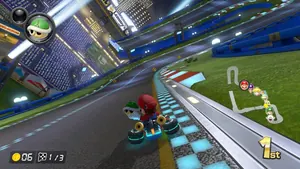
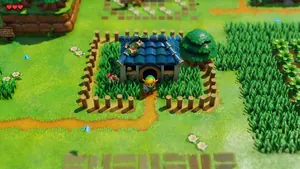
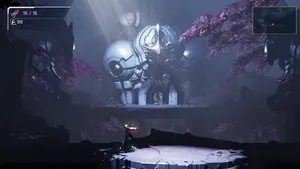
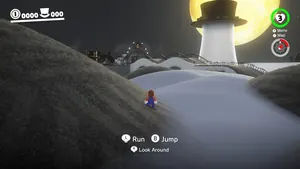
The pictures below are game art from the project gallery in the Peanuts Native repository. They show the games themselves as they run, not the Peanuts Native app interface: no published captures of the app screens exist, so none are shown as screenshots here.
Troubleshooting
The build will not start. Check the three setup items first: keys, firmware, and game folder. A build will not start until all three are set, and the first screen is where they are added. Also check that the game dump and its update are in the folder you picked, in a format the app accepts.
The picture looks broken. Check the GPU driver before anything else. Turnip v27.0.0-R3 draws broken images on Adreno 7xx GPUs, and the app now warns about it. Move back to Turnip 27.0.0-R2, which is the driver the current release was checked on. For Pokemon Let's Go, use Turnip rather than the stock Qualcomm driver, which draws the 3D scene black.
A game starts without its mod. A mod that changes the game code needs a build with mods, and that build waits while another build runs. The game starts without the mod until the new build is ready. After a failed build, open the game page and tap Build with mods to try again.
The app update changed behaviour. Rebuild every game after an app update: hold the cover, open Storage, tap Build again, then Rebuild. The shaders of games built with the previous release are upgraded in place in seconds, except games with tessellation, such as Tears of the Kingdom, which prepare their shaders again.
The game does not start after a build. Check that the game update matches the one listed for the game. Some games support more than one update and others need the exact one. The game page tells you, and the app asks before building with an unsupported update.
Safety and Verification
The release package is the project's own release asset, and the checks around it are part of the design. Companion downloads are checked against their published checksums before use, and the offline companion install from a .dsmod.zip file applies the same checks. Nothing in the app downloads game code, firmware, or keys.
The current release was checked on an AYN Thor with its data kept across the update from the previous release. The Witcher 3, Breath of the Wild, Animal Crossing: New Horizons at 60 fps with the built-in speed fix, Fire Emblem Engage, Star Ocean The Second Story R, and Hogwarts Legacy were played for the release, and the companion and the stats page drew cleanly on Turnip 27.0.0-R2.
Install only the release asset from the project releases page. Test builds carry a different signing key and cannot install over a release build, so a file that claims to upgrade a release install while signed differently should be treated as a different build, not an update.
Pros and Cons
Pros
- Games run natively, with code rewritten for the phone CPU and graphics replayed on Vulkan
- Live, touchable companions on the second screen, in the Eden Duo package format
- 76 supported games, with honest frame rate caps and per-game settings
- Mods and cheats for every game, with switches that work at once
- Open source under GPL-3.0-or-later, with builds that reuse earlier work for faster rebuilds
Cons
- Steep requirements: Android 13, Snapdragon with Vulkan 1.3, and 12 GB of RAM
- Builds take five to forty minutes, and every game needs a rebuild after an app update
- Driver sensitivity: one Turnip release draws broken images on Adreno 7xx hardware
- Each game needs a specific update, and an unsupported update may not start
- Full value needs a dual-screen handheld; single-screen phones lose the companion
How to Install Peanuts Native on Android
Download the release APK from the project releases page and open it on your handheld. Android will ask you to allow installs from the app you used to open the file; allow it for that app only, then return to the installer and confirm. The install itself takes a few seconds.
Open the app and allow All files access when asked. Add your prod.keys file, pick your Game folder, and add your Firmware on the first screen. Set a Build folder in Settings under Library if you want builds organised in one place, on the phone or on the microSD card.
Pick a supported game from the library and tap Build. Give the build time: five to forty minutes on the Thor is normal. When it finishes, tap the game to play, and the companion starts on the bottom screen. If you update the app later, rebuild every game from its Storage page before judging how it runs.